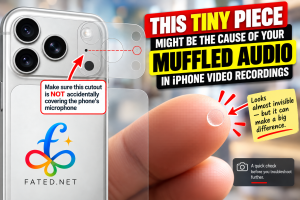
If your iPhone video audio sounds muffled, distant or strangely poor, you might naturally assume that something is wrong with the microphone.
Before resetting your phone, changing a dozen settings or arranging a repair, however, there is one ridiculously simple thing worth checking — especially if you have installed a transparent protective film on the back or around the camera area of your phone.
I recently helped troubleshoot an iPhone 17 Pro with muffled audio when recording videos. The phone otherwise appeared to work normally, and the usual software updates and troubleshooting didn’t solve the problem.
After researching many reports from people experiencing similar video recording audio problems — with all sorts of different suggested causes — we eventually found one that matched.
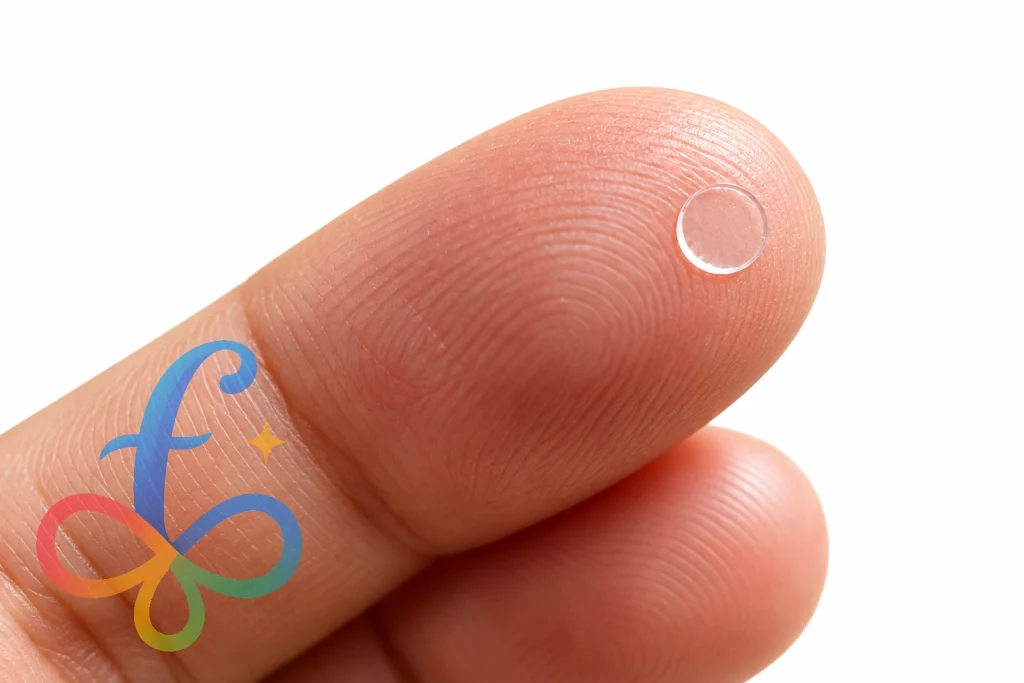
A tiny, perfectly circular piece of transparent protective film was still covering one of the phone’s microphone openings.
And it was remarkably difficult to notice.
The problem was the protective film — but not in the way you might expect
Some transparent rear protectors and camera-area protective films are manufactured with precisely cut openings for the phone’s cameras, flash, sensors and microphones.
At first glance, that sounds perfectly fine. The protector isn’t supposed to cover any of those components.
But here’s the catch.
Just because the manufacturer has cut a tiny circle into the film doesn’t necessarily mean that the circular piece will come away when the protector is installed.
The main protective film can be applied successfully while one of those tiny transparent cutout pieces remains stuck in place.
If that happens over a microphone opening, you can end up with a microphone that is physically covered by an almost invisible layer of plastic.
Because the cutout is tiny, transparent and perfectly round, it may not look like an accidental obstruction at all. Once the phone is inside a case, it becomes even easier to overlook.
Why would this make your iPhone video audio sound muffled?
A microphone works by responding to sound waves travelling through the air. Put a layer of plastic directly over its opening and you interfere with how those sound waves reach the microphone.
The confusing part is that the microphone may not stop working completely.
Your video can still have audio.
It may simply sound muffled, distant, dull or noticeably worse than it should.
That makes this problem particularly misleading. If the microphone were completely dead, diagnosing a hardware problem would be relatively straightforward. When it still records sound — just badly — it is easy to start looking for software bugs, camera settings, noise processing problems or microphone hardware failures.
Sometimes the microphone is perfectly fine.
It just has a tiny piece of plastic sitting over it.
What should you check?
If your iPhone video recordings have muffled or poor-quality audio, inspect the area around the rear cameras carefully before doing anything drastic.
This is particularly worth checking if you have ever installed:
- A transparent rear phone protector
- A camera-area protective film
- A camera lens protector
- A skin or transparent wrap
- A phone case that closely surrounds the camera module
For an idea of the type of transparent rear protector involved, here is a general example of a back protector. Check its camera and microphone cutouts carefully during installation.
Look for the phone’s microphone openings and make sure that every opening that is supposed to be exposed really is exposed.
Don’t assume that seeing a perfectly round circle means you’re looking at an open hole. You may actually be looking at the edge of a transparent cutout that is still attached.
The leftover piece can be extremely difficult to see
The piece we eventually removed was tiny.
Once separated from the phone, it became obvious what had happened: it was the small circular piece created when the protector manufacturer cut the microphone opening.
While it was still attached to the phone, however, it blended into the surrounding protector surprisingly well.
Try shining a bright light across the surface at an angle rather than looking directly at it. Reflections along the edge of the film can make a leftover cutout much easier to spot.
You can also compare the microphone opening against photographs of an unprotected version of your phone to see whether something appears to be covering it.
Don’t poke anything into the microphone
This is important: don’t stick a needle, SIM ejector tool or other sharp object into the microphone opening.
You’re trying to determine whether something is sitting *over* the opening, not clean inside it.
If you discover a piece of protective film covering the microphone, carefully lift the film away without inserting anything into the microphone itself.
Once removed, record another short video under similar conditions and compare the audio.
Ideally, make a simple before-and-after test by speaking from roughly the same position and volume. If the protective film was responsible, the difference should be immediately noticeable.
What if there’s nothing covering the microphone?
This obviously isn’t the cause of every iPhone microphone or video audio problem.
If you’ve inspected the phone carefully and all of the microphone openings are unobstructed, continue troubleshooting normally.
Some sensible next steps include:
- Remove the phone case temporarily and test again.
- Check whether dirt or debris is obstructing an external microphone
opening.
- Compare recordings made with the Camera app and other apps.
- Test different cameras and recording modes if the problem appears
specific to video recording.
- Restart the iPhone.
- Install any available iOS updates.
- If the problem persists, contact Apple Support or arrange for the
phone to be inspected.
The point isn’t that protective film is always responsible. It’s that this check takes less than a minute and can potentially save you from doing considerably more complicated troubleshooting.
What about the iPhone 17 Pro Max, iPhone 18 Pro and other phones?
Although the problem described here was diagnosed on an iPhone 17 Pro, the underlying issue isn’t unique to that model.
The same principle can apply to the iPhone 17 Pro Max, iPhone 18 Pro, iPhone 18 Pro Max and other iPhone models — as well as Android phones — whenever a protective film, case, skin or camera protector can obstruct a microphone opening.
The exact position and number of microphones varies between phone models, so don’t rely on the location shown in a photograph of a different device. Check the microphone locations for your particular model.
This is especially relevant when using third-party protectors. A protector may have all the correct cutouts and still cause trouble if one of the tiny pieces created during manufacturing doesn’t separate cleanly during installation.
One quick check before blaming the microphone
If your phone records video with inexplicably muffled audio, take a close look at it before diving into software troubleshooting.
Check the case. Check the camera protector. Check any transparent film. And most importantly, make sure that the tiny microphone cutouts are actually open holes rather than transparent circles that are still sitting over them.
In our case, that tiny piece of clear film was the culprit.
Hopefully, if you’ve arrived here searching for why your iPhone 17 Pro video audio sounds muffled — or you’re seeing the same problem on an iPhone 17 Pro Max, iPhone 18 Pro, iPhone 18 Pro Max or another smartphone — this gives you one very quick thing to check before assuming that your microphone needs repairing.